

Why Guest Wi-Fi Should Be Separate From Your Business Network
Offering Wi-Fi to customers, contractors, and visitors is convenient. But their phones and laptops should not connect to the same network as your business computers, printers, security cameras, servers, and file storage.
Even when you trust the person, you do not control their device. You do not know whether it has current security updates, whether it contains malware, or who else has used it.
A properly configured guest network gives visitors internet access without allowing their devices to communicate with your business systems.
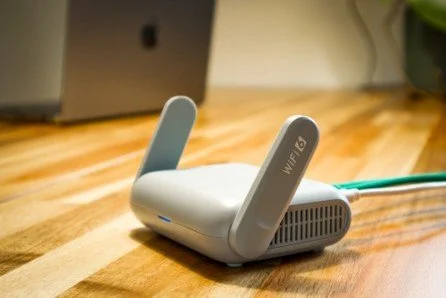
What Separate Guest Wi-Fi Means
When someone connects to your guest Wi-Fi, they should be able to browse the internet, use email, and access online services. They should not be able to connect to anything on your internal network.
That includes:
Business computers and servers
Network printers
File storage and backup devices
Security cameras
Building access systems
Router and network management pages
Other devices using the guest network
It is recommended that an organisations internal network is separate from the guest Wi-Fi.
Both networks can use the same internet connection. The settings that separate them are configured in your network equipment, such as the router, firewall, switches, or wireless access points.
Why One Shared Network Creates Unnecessary Risk
Connecting to the same network does not automatically give a visitor access to every business file. Your passwords, device security settings, and user permissions still apply.
However, a device on the same network may be able to find or contact systems that it does not need to use. This could include a printer, shared folder, storage device, camera, or poorly protected management page.
An infected device may also try to connect to other devices on the network. If the network is divided into separate sections, those connections can be blocked before they reach your business systems.
The UK’s National Cyber Security Centre explains that network segmentation restricts movement between systems. If one device is compromised, separating the network reduces the number of other systems it can contact.
Separating the networks reduces risk by blocking access that visitors and unmanaged devices do not need.
A Different Wi-Fi Name May Not Be Enough
Your business Wi-Fi and guest Wi-Fi may appear as two different names when someone opens the Wi-Fi menu on their phone. Those names are called SSIDs.
A second SSID does not confirm that the devices are properly separated. The settings behind it must place guest devices on a separate network and block access to internal systems.
Business networking equipment commonly uses a separate virtual network, known as a VLAN, for guest traffic. Firewall rules then prevent that traffic from reaching private network addresses. Some small-business routers handle this automatically when guest mode is enabled.
Cisco’s current guidance describes guest Wi-Fi as a separate SSID connected to its own VLAN, with guests limited to internet access. Its small-office reference design also uses firewall rules to deny guest access to local networks.
The exact settings depend on your equipment. Look for terms such as:
VLAN
Guest firewall rules
Guest network
Network Isolation
Deny local network access
Client isolation
If you only see a second Wi-Fi name and password, ask your IT provider to confirm what guest devices can reach.
Where Should Employee Phones and Personal Laptops Connect?
A personal phone that only needs internet access can usually use the guest network. The same applies to a personal laptop that does not need to connect to internal business systems.
If employees use personal devices to access company files, applications, or internal systems, the business needs a clear bring-your-own-device policy. Those devices may require security software, device management, encryption, and specific access rules.
An employee-owned device should not receive unrestricted network access unless the work requires it.
Company-owned and managed devices can use the business network if they need access to internal resources. Personal and unmanaged devices should use a restricted network unless there is a business reason to provide additional access.

How to Check Your Guest Wi-Fi
Use these five checks to confirm that the network is set up correctly:
Check which devices use each network. Business computers and other managed equipment should use the business network. Visitors and unmanaged devices should use the guest network.
Confirm that local network access is blocked. Guest devices should not be able to connect to printers, file storage, cameras, servers, or network management pages.
Check whether guest devices are isolated from each other. Enable client isolation or the equivalent setting if your equipment supports it.
Review the Wi-Fi security settings. Use a guest password that is different from your business Wi-Fi password.
Check the router and access points. Install current firmware, enable automatic updates when supported, replace default administrator credentials, and replace equipment that no longer receives security updates.
Test the guest network again whenever the router, firewall, switches, or wireless access points are replaced or reconfigured.
Act Now to protect your business
Guest Wi-Fi should provide internet access while blocking connections to your internal business network. A different Wi-Fi name and password do not confirm that the networks are separated. The router, access points, and firewall must also be configured to prevent guest devices from reaching internal systems.
Contact us to learn more about how we can assist you implement separate networks to protect your business

Article used with permission from The Technology Press.